


Table of Contents
Introduction
The message “your organization’s data cannot be pasted here” is a common notification encountered by employees, students, and professionals who work with organization-managed devices and applications. Although the warning can seem frustrating, it serves an important purpose in protecting sensitive information from unauthorized sharing and potential data breaches.
Organizations today rely heavily on digital collaboration tools, cloud platforms, mobile devices, and remote work environments. As data moves between applications, companies implement security policies designed to prevent confidential information from being copied into unapproved locations. When these policies detect a potential violation, users may see the message “your organization’s data cannot be pasted here” instead of completing the paste action.
Understanding why this message appears is essential for maintaining productivity while respecting organizational security requirements. This guide explores the meaning of the error, the technologies behind it, common causes, troubleshooting methods, and best practices for avoiding future disruptions.
Understanding the “Your Organization’s Data Cannot Be Pasted Here” Message
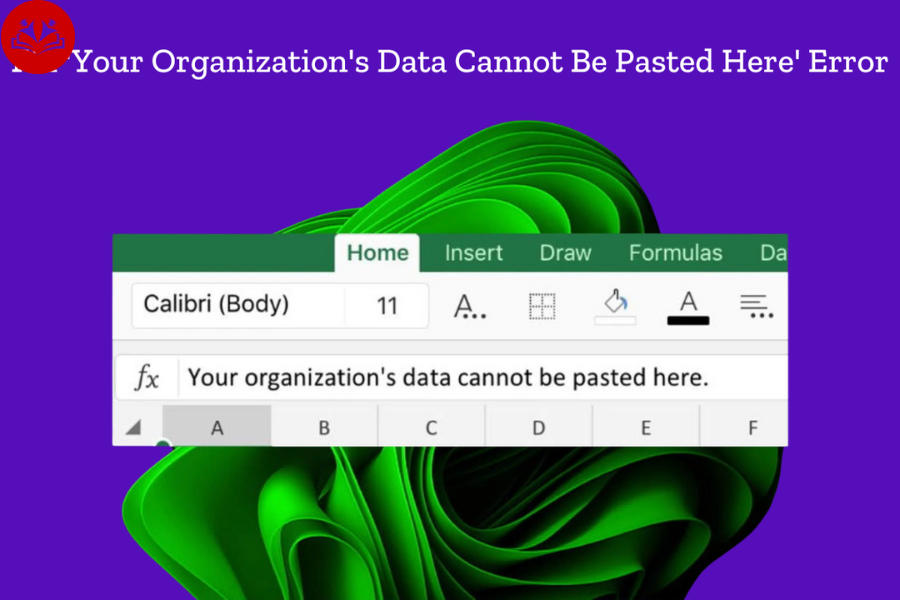
The notification “your organization’s data cannot be pasted here” generally appears when a security policy restricts copying and pasting data between applications, accounts, or devices.
Modern organizations use data protection technologies to ensure that sensitive information remains within approved environments. These policies are commonly configured through enterprise mobility management systems, cloud security platforms, and device management solutions.
When a user attempts to copy information from a protected application and paste it into an unapproved destination, the system blocks the action and displays the warning message.
What the Message Actually Means
The error does not necessarily indicate a technical malfunction. In many cases, it confirms that organizational security controls are functioning as intended.
The message often appears when:
Users copy data from a corporate email account.
Users attempt to paste information into a personal application.
Security policies classify the destination as untrusted.
Device management rules prohibit data sharing.
Applications are not configured correctly.
Why Organizations Restrict Data Copying
Businesses manage large amounts of confidential information every day. Customer records, financial data, legal documents, intellectual property, and internal communications require protection against accidental or intentional exposure.
The “your organization’s data cannot be pasted here” notification helps reduce security risks by controlling how information moves between applications.
Security Objectives Behind Copy-Paste Restrictions
| Security Goal | Purpose |
| Data Loss Prevention | Prevent confidential data leakage |
| Regulatory Compliance | Meet legal and industry standards |
| Insider Threat Reduction | Limit unauthorized sharing |
| Device Security | Protect data on managed devices |
| Risk Management | Control information flow |
Organizations implement these controls to create secure digital workspaces without completely restricting employee productivity.
Microsoft Intune and Data Protection Policies
One of the most common causes of the “your organization’s data cannot be pasted here” message is Microsoft Intune.
Microsoft Intune enables IT administrators to manage applications, devices, and data security policies across an organization.
When Intune app protection policies are enabled, users may encounter restrictions on copying and pasting information between managed and unmanaged applications.
How Intune Works
Intune identifies trusted applications and creates boundaries around corporate data.
When users interact with protected content, Intune evaluates whether the destination application meets security requirements. If it does not, the paste operation may be blocked.
Typical Intune Data Transfer Rules
| Source Application | Destination Application | Result |
| Corporate Outlook | Managed Teams | Allowed |
| Corporate Outlook | Personal Notes App | Blocked |
| Managed Excel | Managed Word | Allowed |
| Managed Excel | Personal Messaging App | Blocked |
| Corporate OneDrive | Approved App | Allowed |
These policies help organizations balance usability and security.
Common Causes of the Error
Several situations can trigger the “your organization’s data cannot be pasted here” warning.
Using Personal Applications
One of the most common causes is attempting to paste business data into personal applications. Security policies frequently block transfers between work and personal environments.
Unmanaged Devices
Organizations often require managed devices for handling sensitive information. Attempting to access protected content on an unmanaged device may trigger restrictions.
Outdated Applications
Older application versions may not support current security requirements. As a result, the system may block paste operations.
Policy Misconfiguration
Sometimes administrators unintentionally create overly restrictive rules that prevent legitimate business workflows.
Authentication Problems
Expired sessions, account synchronization issues, or identity verification failures can also cause the warning message to appear.
How Enterprise Data Protection Works
Enterprise data protection involves multiple layers of security working together.
The goal is not only to protect stored data but also to control how users interact with information throughout its lifecycle.
Core Components
| Component | Function |
| Identity Management | Verifies user access |
| Device Management | Controls device compliance |
| App Protection | Restricts data movement |
| Encryption | Secures stored information |
| Access Policies | Defines usage rules |
The “your organization’s data cannot be pasted here” message often results from one or more of these systems enforcing established policies.
Troubleshooting the Error
When users encounter the warning, several troubleshooting methods may help resolve the issue.
Verify Application Permissions
Ensure both the source and destination applications are approved by your organization.
Many organizations publish lists of authorized applications for business use.
Update Your Applications
Software updates frequently include compatibility improvements and security enhancements.
Running outdated applications can lead to policy enforcement issues.
Restart the Application
Temporary synchronization problems can sometimes trigger copy-paste restrictions unexpectedly.
Closing and reopening the application may refresh security settings.
Check Account Authentication
Verify that you are signed in using the correct organizational account.
Authentication problems may interfere with policy validation.
Contact IT Support
If the restriction affects legitimate work activities, the organization’s IT team can review policies and determine whether adjustments are appropriate.
Differences Between Security Restrictions and Software Errors
Users often assume the “your organization’s data cannot be pasted here” notification indicates a software problem.
In reality, there is an important distinction.
Security Restriction
A security restriction is intentionally enforced by policy.
The system is working correctly and preventing an action that violates organizational rules.
Technical Error
A technical error occurs when software malfunctions, crashes, or behaves unexpectedly.
Understanding this difference helps users communicate more effectively with support teams.
| Situation | Security Restriction | Software Error |
| Intentional Block | Yes | No |
| Policy Controlled | Yes | No |
| Requires IT Review | Often | Sometimes |
| Indicates System Failure | No | Yes |
Impact on Remote and Hybrid Work Environments
The rise of remote work has increased reliance on security controls.
Employees frequently switch between corporate and personal devices, making data protection more challenging.
As organizations expand remote access capabilities, policies associated with “your organization’s data cannot be pasted here” become increasingly important.
These controls help maintain consistent security standards regardless of where employees work.
Remote Work Challenges
Employees often use multiple devices.
Cloud applications increase data mobility.
Personal and business accounts may coexist on the same device.
Security teams must protect information without disrupting productivity.
Enterprise protection policies address these challenges by defining clear boundaries for corporate data.
Best Practices for Employees
Employees play a critical role in maintaining organizational security.
Following approved workflows reduces the likelihood of encountering copy-paste restrictions.
Work Within Approved Applications
Using authorized software ensures compatibility with organizational policies.
Separate Personal and Business Activities
Maintaining distinct environments for work and personal tasks minimizes security conflicts.
Keep Software Updated
Regular updates help applications remain compliant with evolving security requirements.
Follow Organizational Guidelines
Security policies exist to protect both employees and organizations from unnecessary risks.
Best Practices for IT Administrators
IT teams must balance security and usability.
Overly restrictive policies can frustrate users, while overly permissive settings may expose sensitive information.
Recommended Administrative Approaches
| Best Practice | Benefit |
| Policy Testing | Reduces disruptions |
| User Training | Improves compliance |
| Regular Audits | Identifies weaknesses |
| App Approval Reviews | Maintains compatibility |
| Clear Documentation | Enhances support efficiency |
Effective policy design minimizes unnecessary occurrences of the “your organization’s data cannot be pasted here” warning.
Security Compliance and Regulatory Requirements
Many industries operate under strict regulatory frameworks.
Organizations handling financial records, healthcare data, legal information, or government-related content often face additional compliance obligations.
Copy-paste restrictions contribute to compliance efforts by limiting unauthorized data movement.
Examples include privacy regulations, cybersecurity frameworks, and industry-specific security standards.
Maintaining control over data transfers helps organizations demonstrate responsible information management practices.
Future Trends in Enterprise Data Protection
Enterprise security continues to evolve rapidly.
Artificial intelligence, behavioral analytics, and adaptive security policies are transforming how organizations protect information.
Future systems may evaluate user intent, context, device health, and risk levels in real time before allowing data transfers.
Instead of simple block-or-allow decisions, organizations may implement more intelligent controls that support productivity while maintaining strong security.
As these technologies mature, users may encounter fewer unnecessary restrictions while still benefiting from robust protection.
Conclusion
The message “your organization’s data cannot be pasted here” is an important security feature rather than merely an inconvenience. It helps organizations safeguard sensitive information by controlling how data moves between applications, accounts, and devices. While the warning may occasionally disrupt workflows, it plays a critical role in preventing data leaks, supporting regulatory compliance, and reducing cybersecurity risks.
Understanding why “your organization’s data cannot be pasted here” appears allows users to work more effectively within organizational security frameworks. By using approved applications, maintaining updated software, following company policies, and collaborating with IT teams when necessary, employees can minimize disruptions while protecting valuable business information. As enterprise security technologies continue to advance, these protections will remain a fundamental component of modern digital workplaces.
Frequently Asked Questions
What does “your organization’s data cannot be pasted here” mean?
This message indicates that organizational security policies are preventing data from being pasted into a specific application, account, or location that is not approved for handling protected information.
Why am I seeing this message in Microsoft apps?
Many organizations use Microsoft Intune or similar management tools to control how corporate data is shared. If a paste action violates configured policies, the system blocks it and displays the warning.
Can I disable the “your organization’s data cannot be pasted here” restriction?
Regular users typically cannot disable the restriction. The policy is usually controlled by an organization’s IT administrators to protect sensitive data.
How can I fix the error if I need the information for work?
Verify that both applications are approved by your organization, ensure you are signed into the correct account, update your software, and contact IT support if the restriction interferes with legitimate business tasks.
Is the message caused by a software problem?
Not usually. In most cases, the notification is a deliberate security measure rather than a software malfunction. It indicates that data protection policies are actively preventing unauthorized data transfers and more.
